

- January 6, 2026
- Posted by: Chase Gregory
- Categories: Digital, Internet, Media, SEO, Web Design
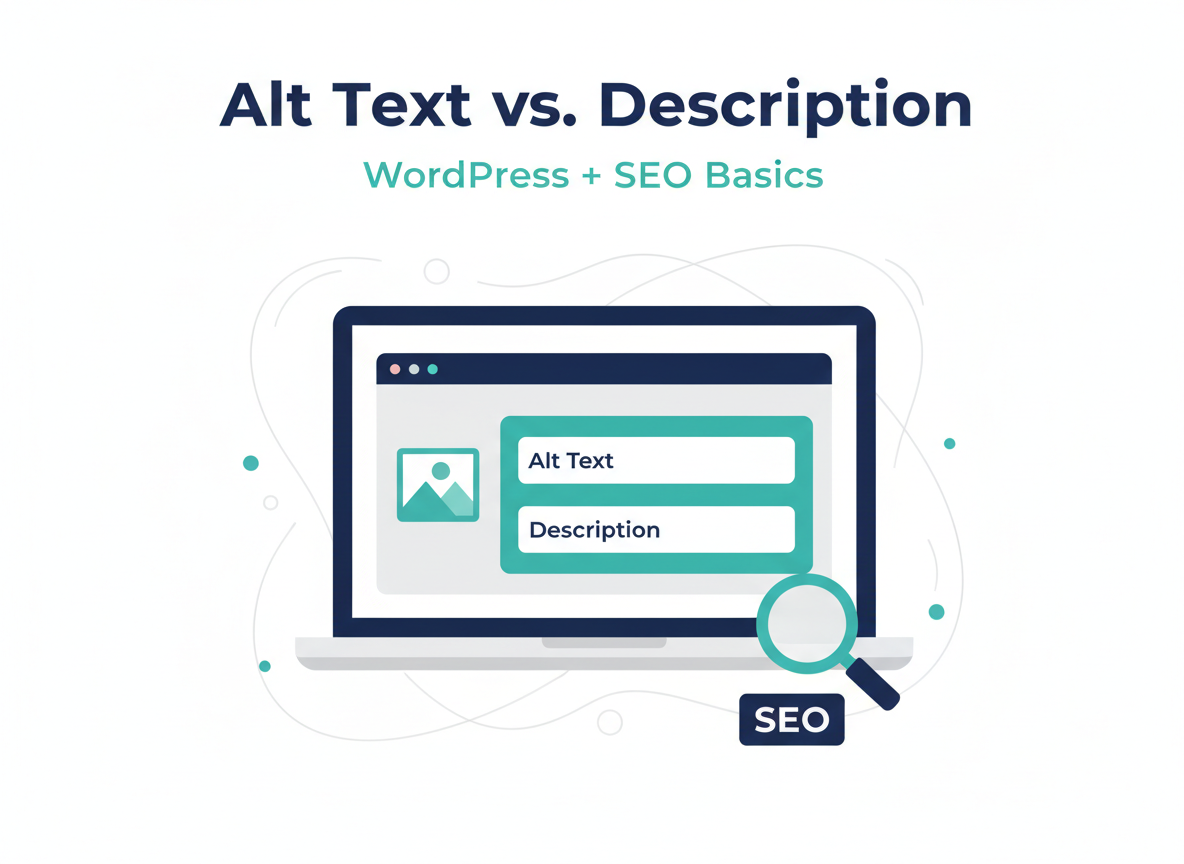
If you’re new to WordPress, it’s easy to assume all the “text fields” around an image do the same thing. They don’t. Two of the most commonly confused fields are Alt Text and Description (descriptive text)—and using them correctly can help both SEO and accessibility.
Below is a beginner-friendly breakdown of what each field does, where it shows up, and how to write it well.
Quick definitions:
- Alt Text (Alternative Text): A short, accurate description of what’s in the image. It’s primarily for screen readers (accessibility) and also helps search engines understand the image.
- Description (Descriptive Text): A longer text area in the WordPress Media Library that can provide extra context. Depending on your theme and settings, it may show on an attachment page or in certain galleries—but it often isn’t visible on the page.
Where you’ll see these fields in WordPress:
When you upload or click an image in WordPress (Media Library or inside a post), you’ll typically see:
- Alt Text
- Caption
- Title
- Description
For this post, we’re focusing on Alt Text and Description.
What Alt Text is for (and why it matters)
Alt text exists so that if someone can’t see the image (for example, they use a screen reader or the image fails to load), they still get the meaning.
SEO benefit:
Search engines can’t “see” images the way humans do. Alt text helps them understand what the image is about, which can help your images show up in Google Images and reinforce the topic of your page.
How long should alt text be?
Usually one short sentence or phrase. Think: clear and specific, not stuffed with keywords.
Good alt text examples:
Imagine you have a blog post about pressure washing services and you upload a photo of a technician cleaning a driveway.
- Good: “Technician pressure washing a concrete driveway in Orlando.”
- Good: “Pressure washing a stained driveway before sealing.”
Bad alt text examples:
- Too vague: “Driveway”
- Keyword stuffing: “Pressure washing Orlando pressure washing company best pressure washing driveway cleaning Orlando”
- Unhelpful: “IMG_4920”
What the WordPress Description field is for?
The Description field is basically extra information about the image inside WordPress.
Depending on your setup, it may:
- Show on the image’s attachment page (a separate page WordPress can create for each media item)
- Be used by some gallery plugins
- Not show anywhere publicly at all
So think of Description as optional supporting context, not a primary SEO field.
When Description is useful:
- You want to add extra details you don’t want in alt text
- You need internal notes (photo credit, location, project name)
- You’re using a gallery/portfolio plugin that displays descriptions
Example descriptions:
Using the same pressure washing photo:
- Description example: “Residential driveway cleaning in Orlando, FL. This project removed oil staining and mildew buildup prior to applying a protective sealer. Photo taken by Full Scale Marketing.”
Notice how that’s more detailed than alt text—and that’s okay.
The simplest way to remember the difference:
- Alt Text = what the image shows (for accessibility + image SEO)
- Description = extra context about the image (sometimes visible, often optional)
Side-by-side examples (beginner-friendly)
Here are a few common website image types and what you might write.
Example 1: Team photo
- Alt Text: “Full Scale Marketing team standing in front of the office.”
- Description: “Team photo taken during our 2026 planning meeting in Orlando. Left to right: Chase, [Name], [Name].”
Example 2: Screenshot of a WordPress setting
- Alt Text: “WordPress Media Library showing the Alt Text field.”
- Description: “Screenshot from WordPress dashboard: Media Library > Attachment Details. Highlighted fields include Alt Text, Caption, and Description.”
Example 3: Product image (ecommerce)
- Alt Text: “Stainless steel insulated water bottle with black lid.”
- Description: “Product photo on white background. 24 oz insulated stainless steel bottle, matte finish, black screw-top lid.”
Beginner tips for writing alt text that helps SEO (without overthinking it)
- Be specific: Describe what’s actually in the image.
- Keep it natural: Write like a human, not a keyword list.
- Include context when it matters: If location or product type is important, include it.
- Skip “image of” or “picture of”: Screen readers already announce it’s an image.
- Decorative images: If an image is purely decorative (no meaning), it may be okay to leave alt text empty (this is an accessibility best practice in many cases).
Common WordPress mistake to avoid:
A lot of beginners put long, keyword-heavy text into the Alt Text field because they think it’s a “SEO description.” That can hurt readability and accessibility.
If you have extra details you want to store, put them in Description (or in the surrounding page content), and keep Alt Text short and accurate.
Quick checklist:
- Alt Text: Short, accurate description of what’s in the image
- Description: Optional longer context; may or may not display publicly
- Best practice: Use alt text on every meaningful image, and use description only when it adds value
Want help cleaning up your WordPress image SEO?
If you’d like, we can help you audit your site’s images and show you quick wins—like improving alt text, compressing images, and making sure your pages load fast.